Knowledge Base
Nesting Sections with the Section Editor
Opening the section editor
Requirements, ITP, and BOM each have an Edit sections button next to Add section in the register toolbar. It opens a full-screen canvas showing every heading in the current document as a node, connected to its parent heading by a line, separate from the leaf rows (requirements, inspection items, or parts) underneath them.
Programme has the same canvas under Edit WBS, next to Add WBS element. A programme's headings are its Work Breakdown Structure, so everything below called a section is a WBS element there and a subsection is a sub-element.
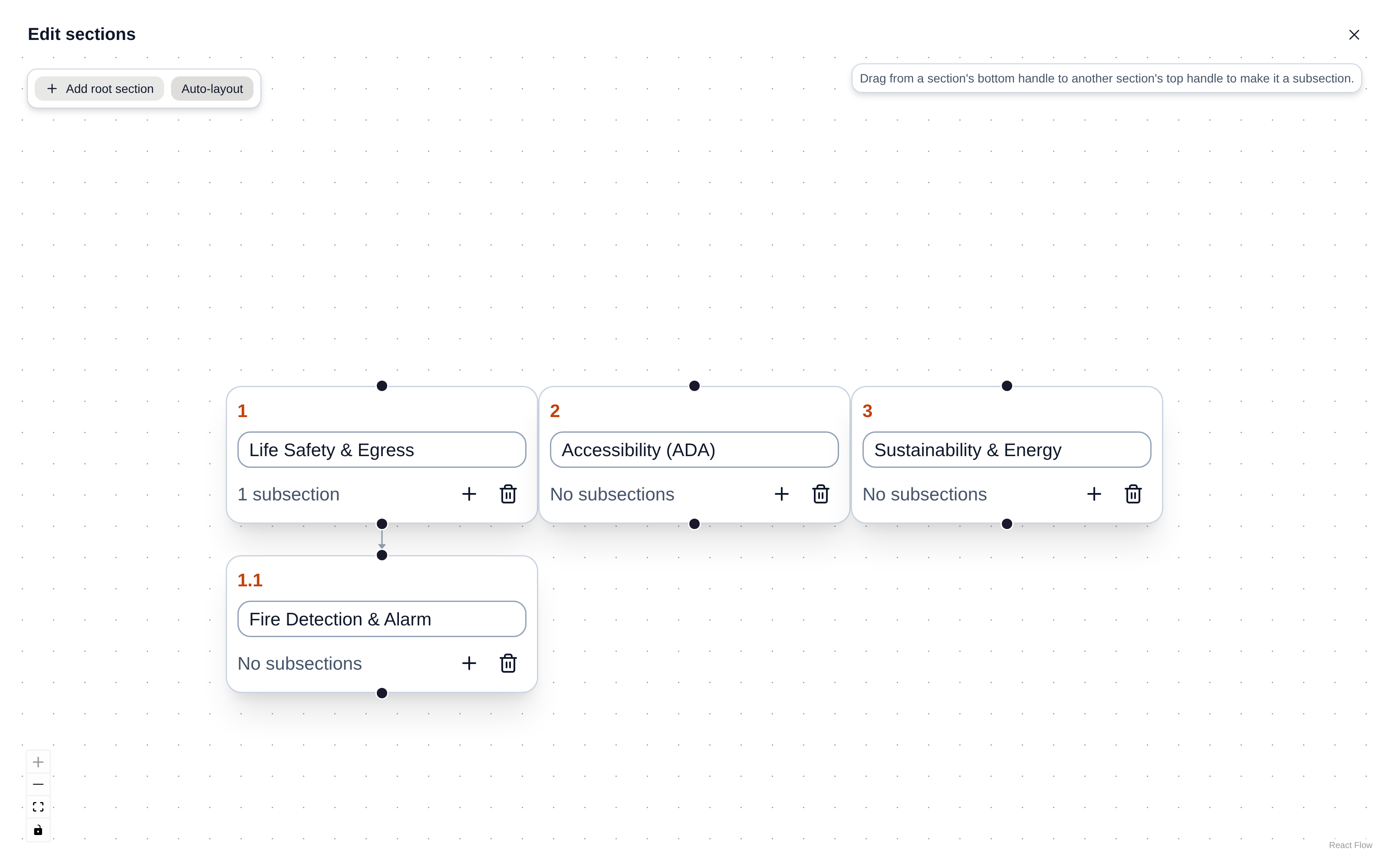
The section editor canvas. Section 1.1 is nested under section 1, and the outline numbers update live.
Nesting a section under another
Drag from a section's bottom handle to another section's top handle to make it a subsection. Sections can nest to any depth, not just one level. Each node shows its live dotted outline number (1, 1.1, 1.1.1, and so on), and moving a section updates that numbering immediately, both on the node you moved and on any sibling whose position shifted because of it.
A section can't be dropped onto one of its own subsections. That would make it its own ancestor, so the canvas rejects the drop rather than let the document end up in a state the outline numbering can't represent.
Adding, renaming, and deleting
Use a node's + button to add a new subsection under it, or Add root section in the canvas toolbar for a new top-level one. Rename a section by typing directly into its node. Delete removes the section and everything nested under it, at any depth, the same cascading behavior as deleting a section from the register table itself.
Renames are saved when you close the popout. Adds, deletes, and drag-to-nest moves save immediately, since those are structural changes rather than keystrokes.
What stays the same
Reparenting a section only changes which heading it nests under, never its position among its new siblings. The number shown on the canvas while you're editing is exactly what the register's outline column will show once you close the popout.