Knowledge Base
Exporting the Programme as a PDF
Two documents, one button
Export PDF in the Programme toolbar issues the programme as a PDF. The dialog asks which of two documents you want, and the choice changes what is printed rather than only how it looks.
Tender issue is the plan. It prints the cover, the basis of the programme, the milestone schedule, the Gantt and the full activity register, and it leaves out progress entirely: no status column, no percent complete, no baseline comparison. A programme where nothing has started yet produces a complete document, which is the point of this preset.
Progress report is the plan measured. It adds status and percent complete to the register, counts what is complete, in progress, not started, overdue and critical, compares milestones against the baseline, and draws the as-at line and the ghost baseline bars on the Gantt.
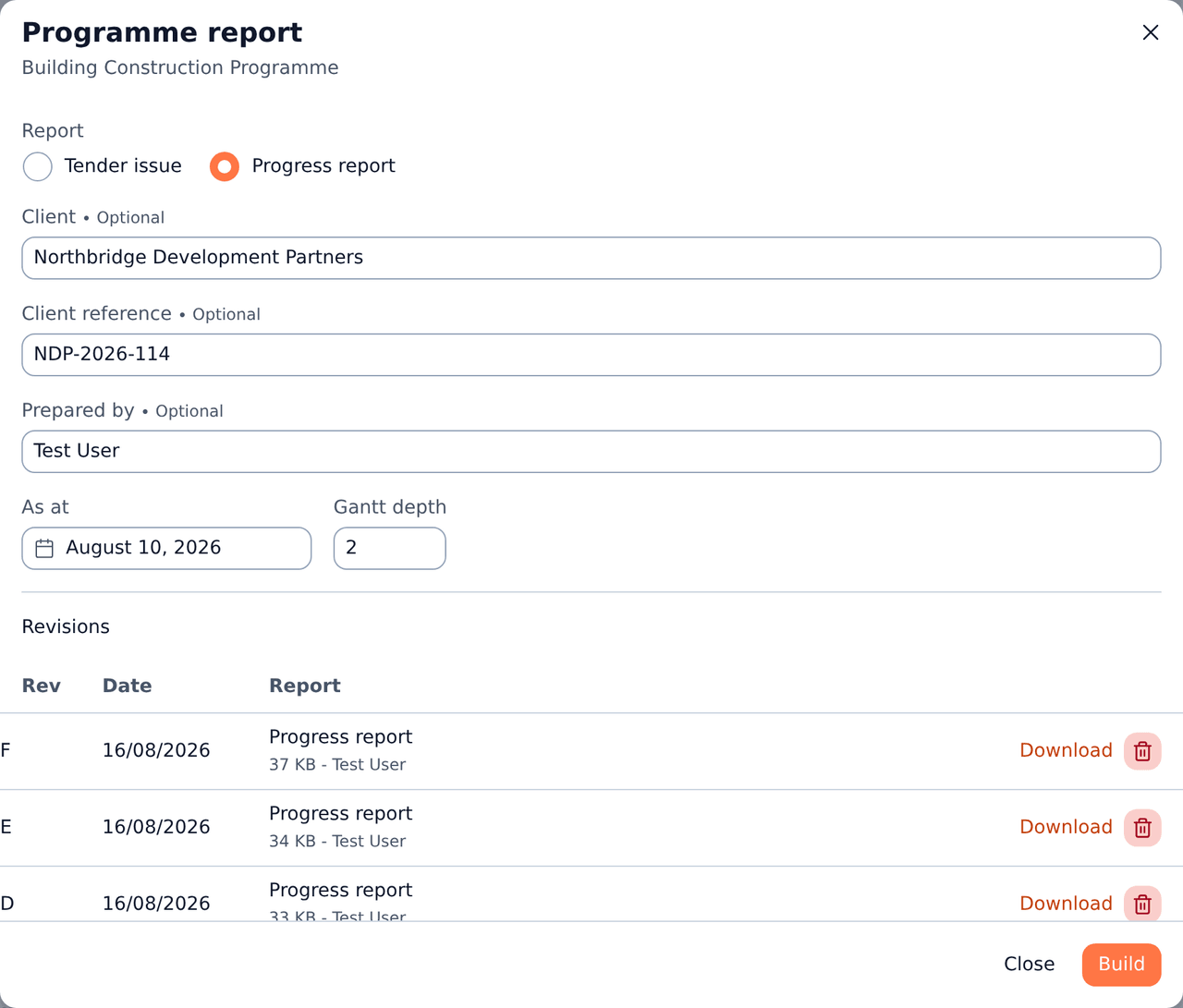
The Programme report dialog: the preset choice, the cover fields, the as-at date and Gantt depth, and the revisions already issued.
What the cover carries
Client name, client reference and prepared by are typed in the dialog and printed on the cover. They are remembered on the export, not on the project, so the next export prefills from the last one and you type them once.
Each export takes the next revision letter for that programme document: Rev A, then Rev B. The letters count per document, so a second programme in the same project has its own Rev A, and the document control table inside the PDF lists every earlier revision with its date and who issued it.
The as-at date
A Progress report is a snapshot, so it prints the date it is a snapshot of.
The programme's own data date wins when it has one. Without a data date, the dialog offers today and you can change it. Nothing here is written back to the programme: exporting never moves a progress cutoff.
When there is no baseline
A Progress report on a programme with no baseline still prints. The baseline sections state that no baseline has been taken rather than disappearing, because a comparison that was not made must never look like one that passed.
Take a baseline first if you want the comparison. See [Baselines and Schedule Variance](/documentation/programme-baselines).
The Gantt prints a summary, the register prints everything
The Gantt depth control decides how far down the work breakdown the chart draws bars. At the default it draws the top two levels, with each WBS element's bar spanning its children, so the chart stays readable on a programme with hundreds of activities. Milestones always draw, whatever level they sit at.
The activity register ignores that control and prints every activity in the programme. The chart is the picture and may summarise; the register is the record and does not.
Both print in the order the Programme page shows: the work breakdown walked top to bottom, and inside a section the activities in start-date order. The milestone schedule in the summary is the exception, running earliest date first whatever section each milestone belongs to, with its total float beside it.
Beside the bars, the chart carries each row's ID, name, start, finish and duration, so a page torn out of the report still reads on its own.
The whole programme always fits one page across. The timescale coarsens from days to weeks, months, quarters or years to make it fit, and thins its labels rather than running the timeline onto a second sheet. Months sit under the year they belong to in a two-row header, repeated on every chart page. Long programmes add rows down the page, never columns across it.
The critical path prints in red: any activity with zero or negative total float that is not yet complete, with its float printed beside it, so the path survives a black and white photocopy. A WBS element turns red when the tightest float beneath it is critical.
The Gantt prints on landscape pages inside the otherwise portrait document, shades non-working days from the project's work calendar, and prints a legend naming every mark it drew.
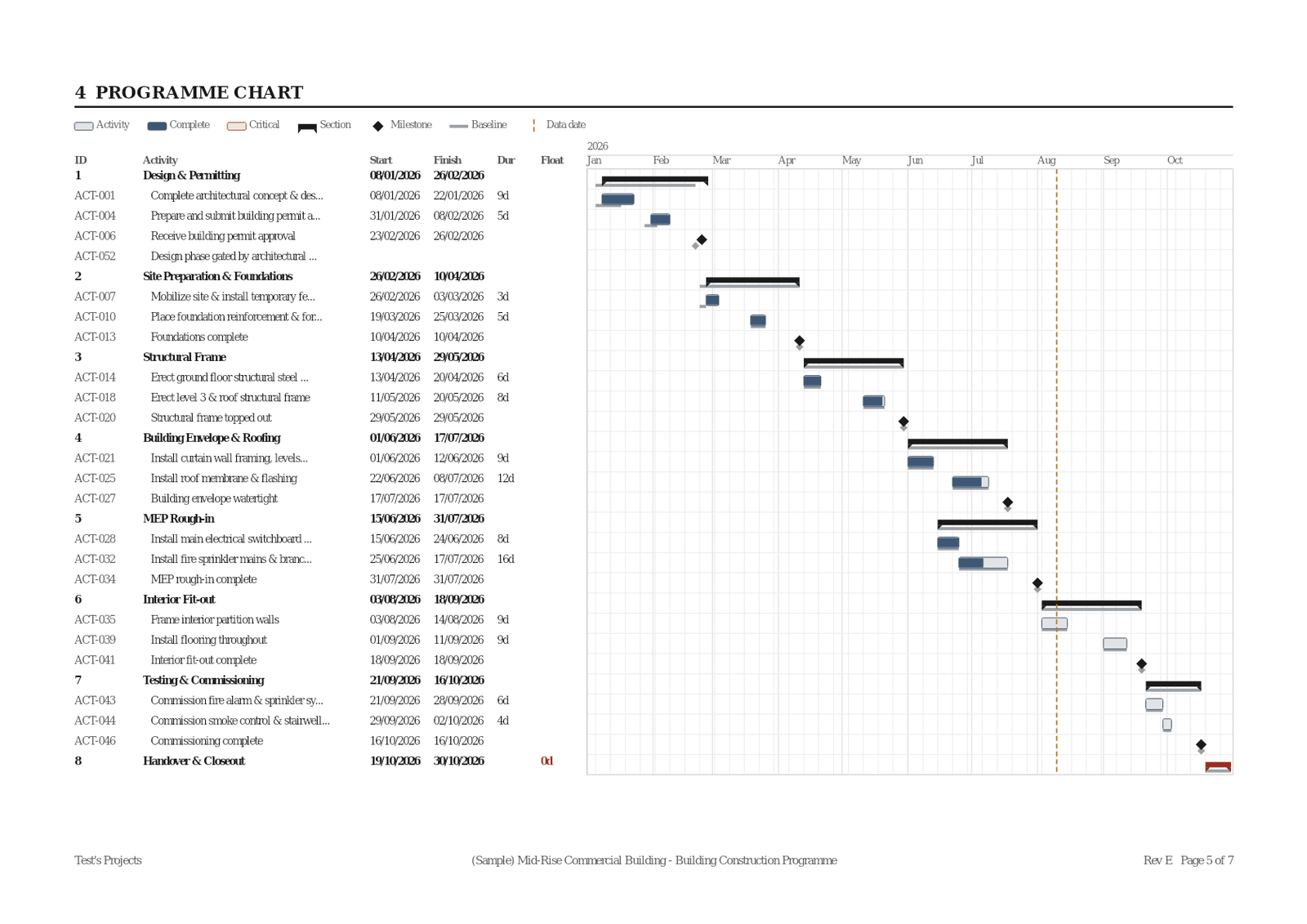
A chart page from a Progress report: dates and durations beside the bars, months under the year, section bars over their activities, progress fills, milestone diamonds with their baseline ghosts, the dashed as-at line, and the critical path in red.
Dates read the way the project writes them
Every date in the report prints in the project's own date format, the one set on the project settings page, so a report and the screens it came from never show a date two ways. Change the format and the next export follows it.
Durations are working days
Every duration in the report is a count of working days, and the Basis of programme section prints the working week and the holidays the dates were built on, so the reader can check a date rather than take it. See [The project work calendar](/documentation/project-work-calendar).
Baseline variance stays a plain calendar-day difference: a milestone that moved from Friday to Monday moved three days whether or not anyone worked the weekend.
Finding an earlier revision
The dialog lists every revision already issued for this programme, newest first, with its date, who built it, its size and a Download link. Each row also carries a SHA-256 of the file as issued, which identifies which revision a PDF someone forwarded you actually is.
The trash icon beside a revision deletes it: the PDF and the record of it go together, and neither comes back. Revision letters are not reissued, so deleting Rev B from a list that already reached Rev D leaves the sequence reading A, C, D.
Deleting the programme itself takes every revision issued from it, and deleting the project takes every report under it. A report belongs to the programme it was rendered from and does not outlive it, so download anything you still need before deleting either.
Issuing and deleting a report are both editor's actions. Anyone on the project can open and download one that already exists.