Knowledge Base
Scheduling Work in the Programme Register
The Work Breakdown Structure, activities, and milestones
A programme document is an outline, same shape as Requirements and ITP. Its headings are the project's Work Breakdown Structure (WBS): each heading is a WBS element, and the activity rows underneath carry start date, end date, duration, percent complete, status, and owner.
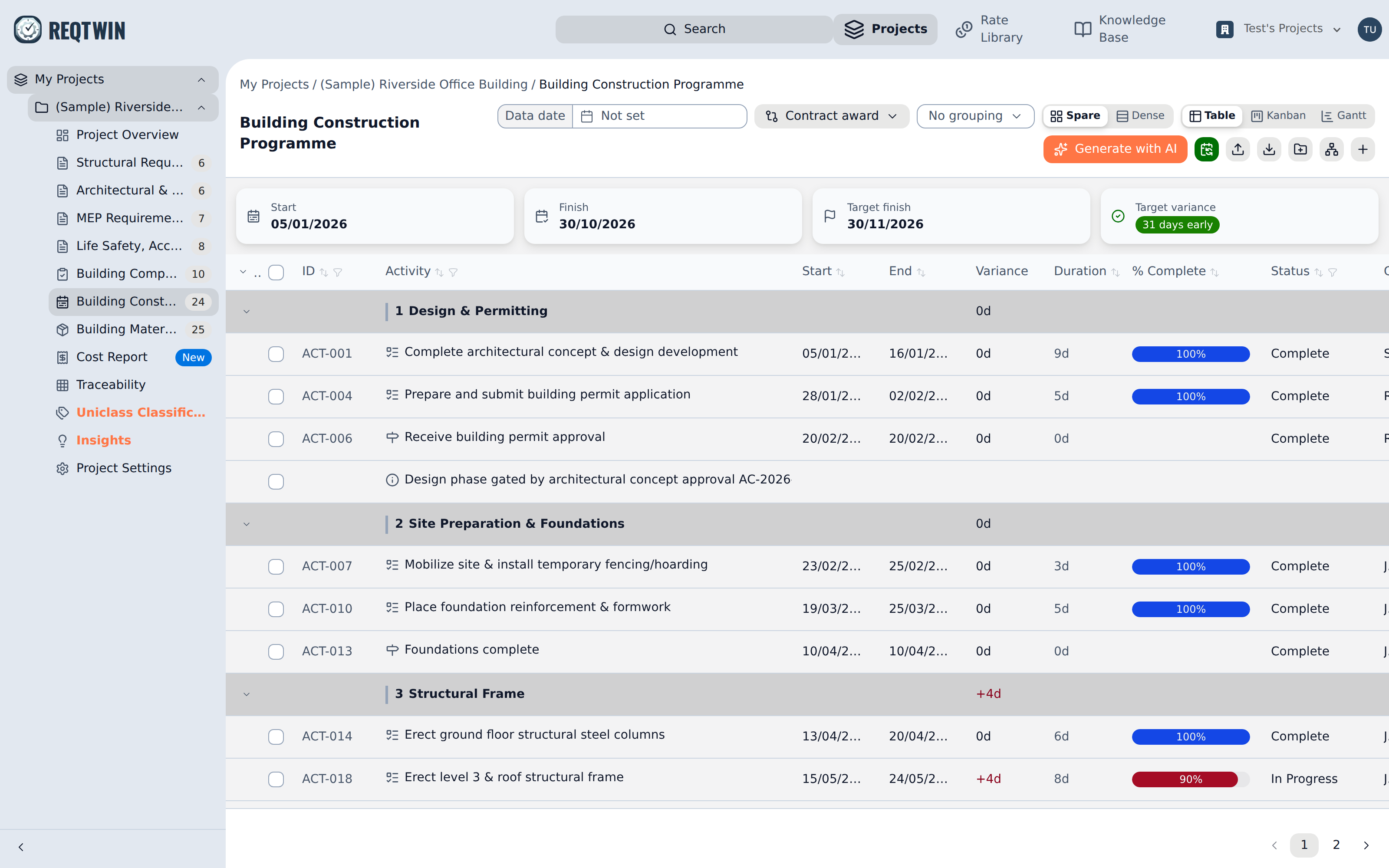
A programme register: activities with dates, duration, percent complete, and status under their WBS elements.
WBS elements can nest to any depth. Use the Edit WBS button to reorganize them on a canvas (drag one element onto another to nest it) rather than deleting and recreating activities to match a corrected structure. See "Nesting Sections with the Section Editor" for details, which calls the same canvas by the name the other registers use.
Toggle an activity's Milestone switch to mark it a single point in time rather than a span. This forces its duration to zero and snaps its end date to match its start date, since a milestone can't have a duration of its own.
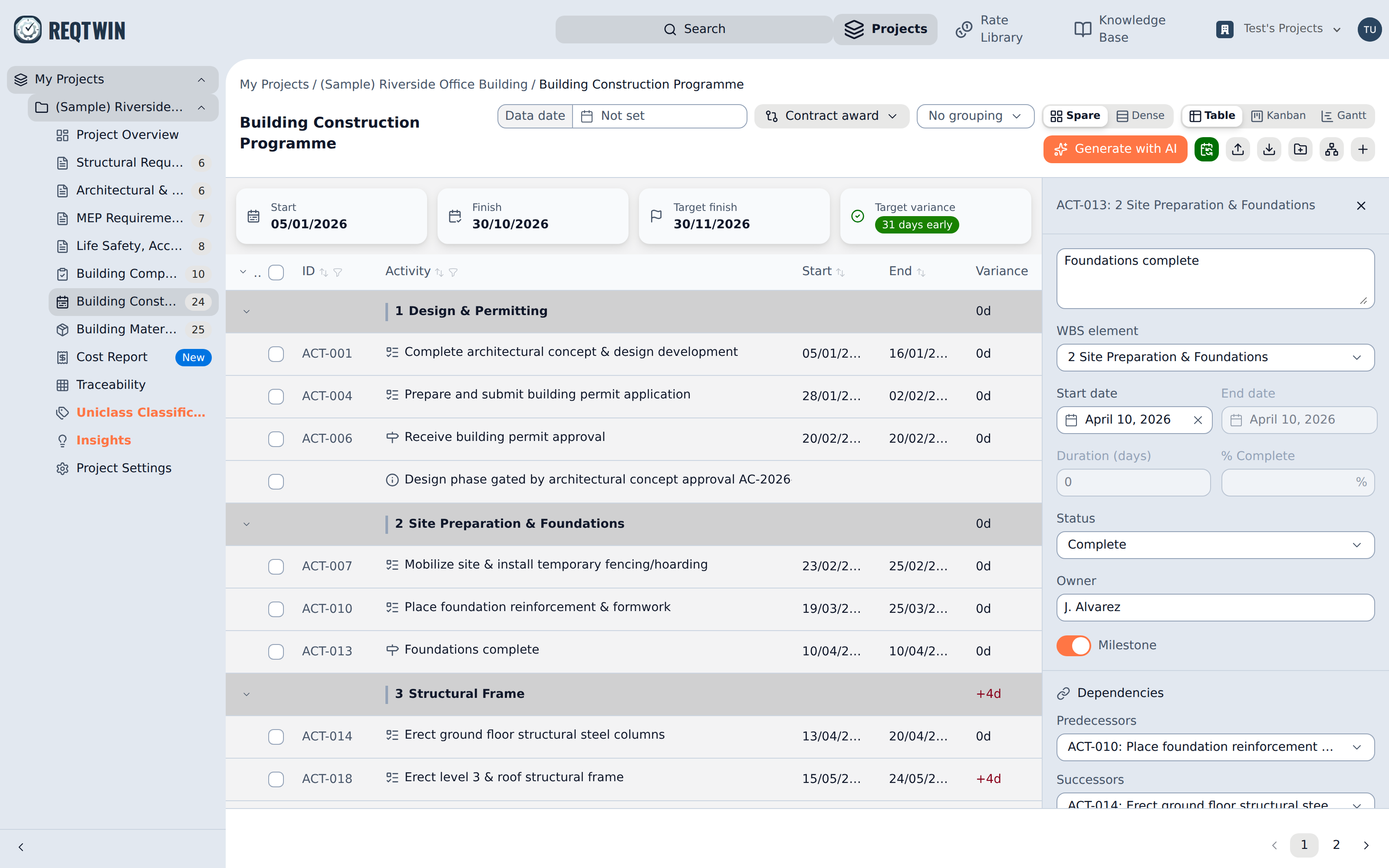
A milestone's detail panel: the Milestone toggle zeroes the duration, and Dependencies lists its predecessors.
What a duration counts
A duration is a count of working days, not calendar days. A five-day activity on a Mon-Fri project runs Monday to Friday and a five-day activity starting on a Thursday finishes the following Wednesday, because the weekend is not part of it. Which weekdays a project works, and which days it takes off, are set on the project's Settings page (see "The Project Work Calendar").
Start, Finish and Duration stay in step as you type: fill in two and the third follows. Every one of those calculations skips the days the project does not work, so a span that reads as ten days is ten days of work rather than ten squares on a calendar.
Projects created before the work calendar existed work seven days a week, where a working day and a calendar day are the same thing, so nothing they hold has moved. New projects start on a Mon-Fri week.
Sizing an activity from a rate
An activity's detail panel also carries a Rate picker and a Quantity field. Pick a rate from the organisation's programme rate book, say how much of it there is, and the duration is worked out for you: the quantity divided by that rate's output per working day, rounded up, never less than a day.
The activity then reads as sourced from the Rate library rather than Manual, and the panel shows the arithmetic behind the figure. Typing a duration over the top, or clearing the rate, returns it to Manual and keeps the number. See "The Rate Library" for what the book holds and who can change it.
Dependencies
An activity's Predecessors field lists the other activities it depends on, finish-to-start. The Successors list below it is the reverse view (read-only, showing what depends on this activity) so you can trace a schedule in either direction from one detail panel. Predecessor chains only run one way in practice; the picker doesn't yet stop you from linking A to B and B back to A, so keep chains one-directional by convention.
Recalculating dates
Editing one activity's dates leaves the rest of the schedule where it is. Schedule rolls those edits through the whole document: every activity with predecessors moves to start on the next working day after the last of them finishes and keeps its duration, while activities with no predecessors keep their start date and anchor the chains below them.
The run walks the project's work calendar throughout. A start date that lands on a weekend or a holiday is moved forward to the next day the project works, and a duration is laid out across working days only, so no activity is left starting or finishing on a day off.
A milestone marks a moment rather than a span, so it inherits the date the last of its predecessors finishes as both its start and its finish. Activities waiting on the milestone then start on the next working day after it, the same as any other dependency.
The button confirms how many activities will move before writing anything, and greys out once the dates already follow every dependency. Activities caught in a circular chain (A before B, B before A) keep their dates, since there's no order to resolve them in.
Scheduling from a data date
The data date next to the view controls is the line between work that has happened and work that hasn't. Leave it empty and Schedule works as described above. Set one, and a run reschedules only what is left:
Completed activities never move. Their dates are the record of when the work actually ran.
An activity in progress keeps the start date it really began on, and its remaining share of the duration (whatever percent complete says is left) is pushed out to the data date. Its duration stays the original figure, so a delayed activity reads as an 8-day activity finishing late rather than as an 80-day one.
Everything not started yet begins on or after the data date, either on the next working day after its last predecessor finishes or on the data date itself, whichever is later. A data date set on a weekend or a holiday pushes that work to the next day the project works. Work already planned beyond the data date stays where you put it.
Move the data date forward as the job progresses, update percent complete, and press Schedule to see where the rest of the programme now lands. On the Gantt the data date shows as a dashed vertical line, alongside the solid one marking today.
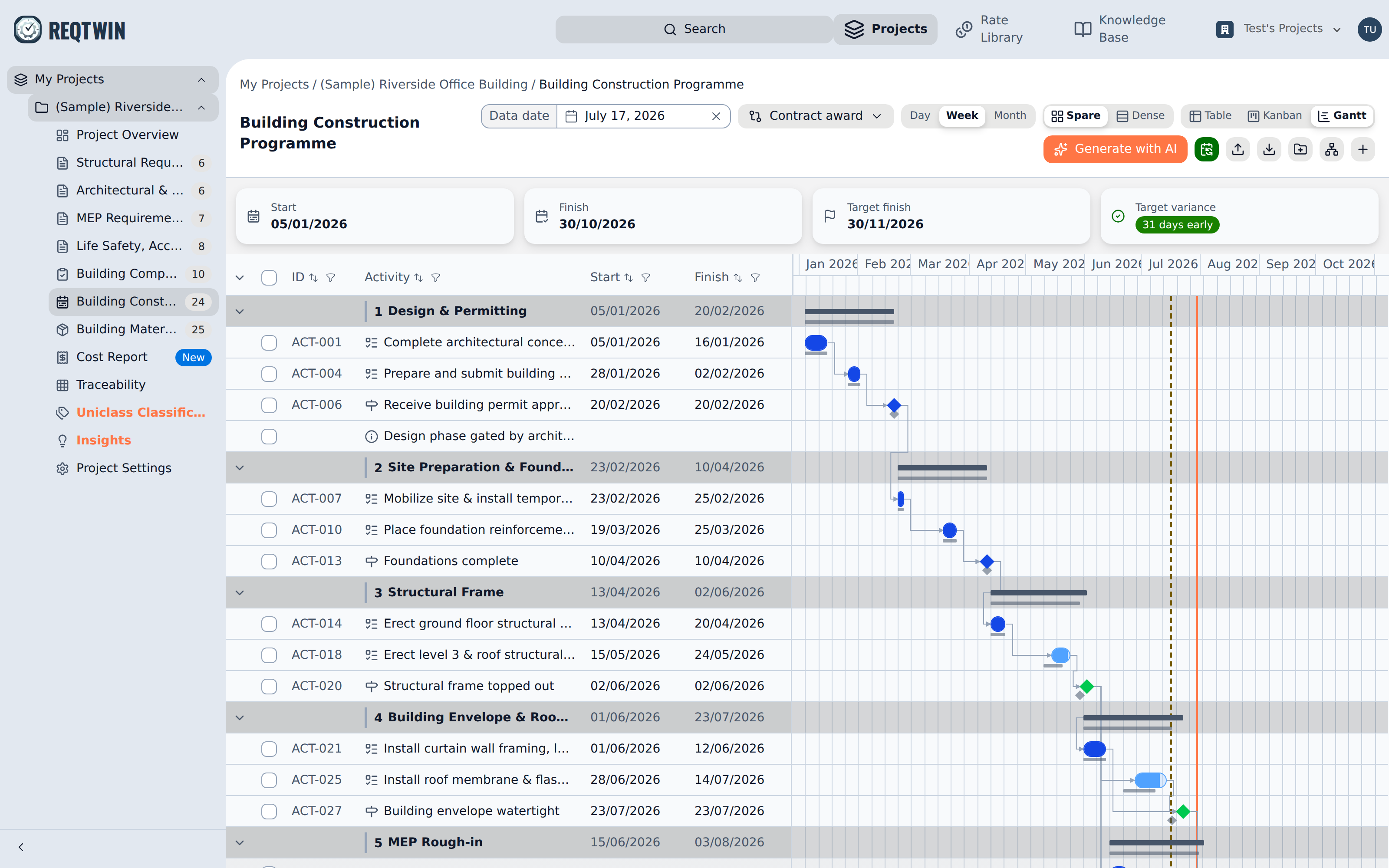
The data date set to 17 July, drawn as a dashed line on the Gantt beside the solid today marker.
Linking milestones to ITP items
Any milestone can have one or more ITP items assigned to it from its detail panel's Related ITP items section. Several items can share the same milestone. This is how inspection sign-off status shows up against the schedule, without the Programme and ITP registers needing a direct field-level link.
Importing a schedule
Import CSV walks through a column-mapping and preview step before anything is written, so you can bring in an existing schedule (including predecessor relationships) instead of re-keying every row by hand. Export CSV produces a file in the same shape, for round-tripping through a spreadsheet.
An export's id, parent_csv_id, and predecessor_csv_ids columns hold the reference ids from the register's ID column, not internal database ids, so a row's parents and predecessors are readable in a spreadsheet. WBS elements carry a reference id of their own in an export even though the table doesn't show one. The type column reads "WBS Element", "Activity", or "Information". Those references only have to line up within the file itself: an import always creates new rows rather than matching existing ones, so re-importing an exported file adds a second copy instead of updating the first.