Knowledge Base
The Requirements Register
The register at a glance
A requirements document opens as a register: headings carry the outline numbers (1, 2, 3), and requirement rows sit underneath the heading they belong to. Each row shows its ID, text, status, priority, and owner, with informational rows (context that isn't a testable requirement) mixed in where the source specification had them.
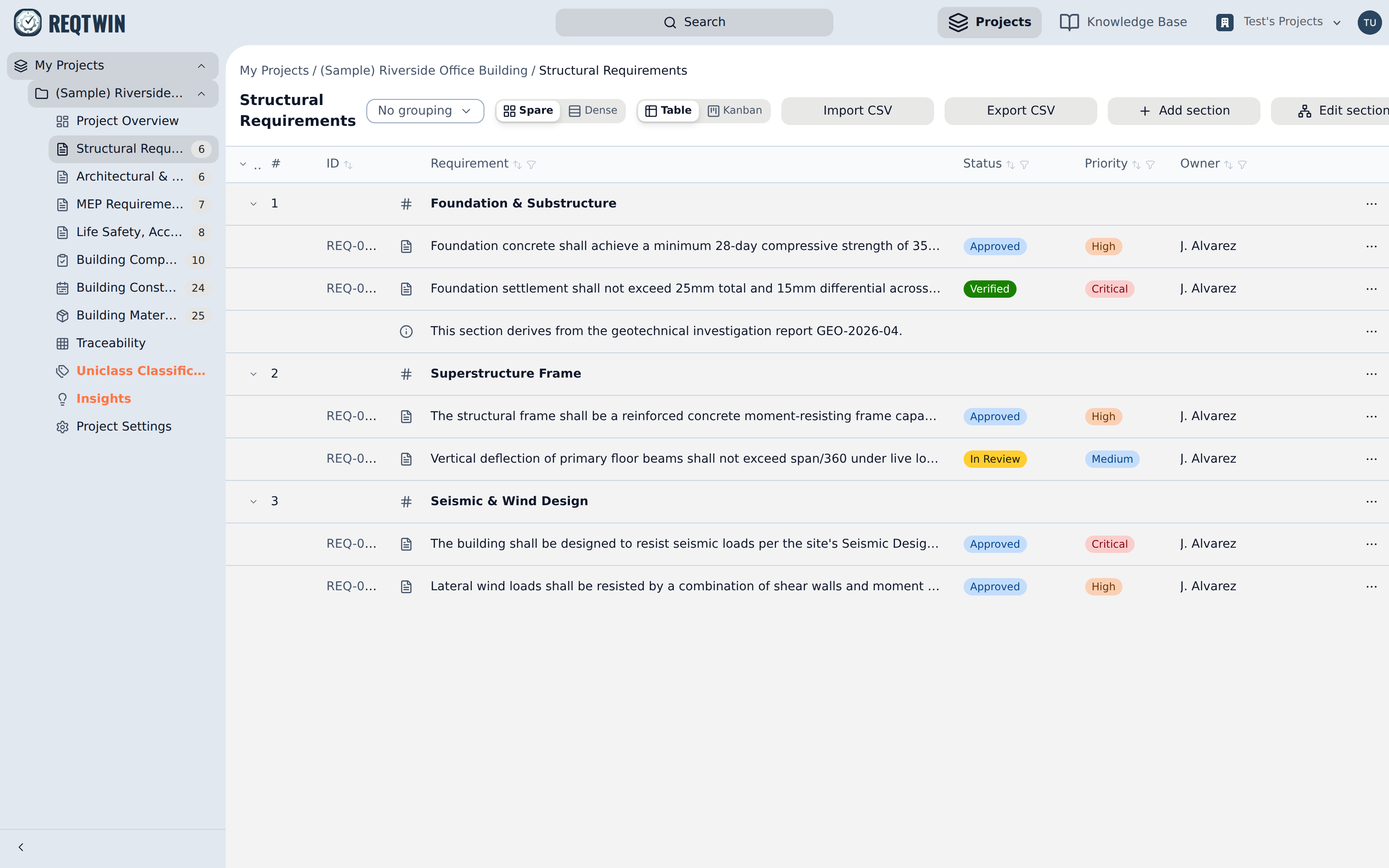
The Structural Requirements register in table view.
The toolbar above the table holds the grouping picker, the Spare/Dense density toggle, the Table/Kanban view switcher, CSV import and export, and the section tools (see "Using Kanban, Grouped, and Dense Views" and "Nesting Sections with the Section Editor" for those).
Fields and statuses
A requirement carries text, a status, a priority, an owner, and an optional rationale. Status moves through Draft, In Review, Approved, Implemented, Verified, and Rejected as work progresses. Priority (Low, Medium, High, or Critical) is separate and doesn't drive that progression on its own.
Clicking a row opens its detail panel, where every field is editable in place. The panel also gathers everything hanging off the requirement: trace links, ITP coverage, BOM coverage, similar requirements, and the change history.
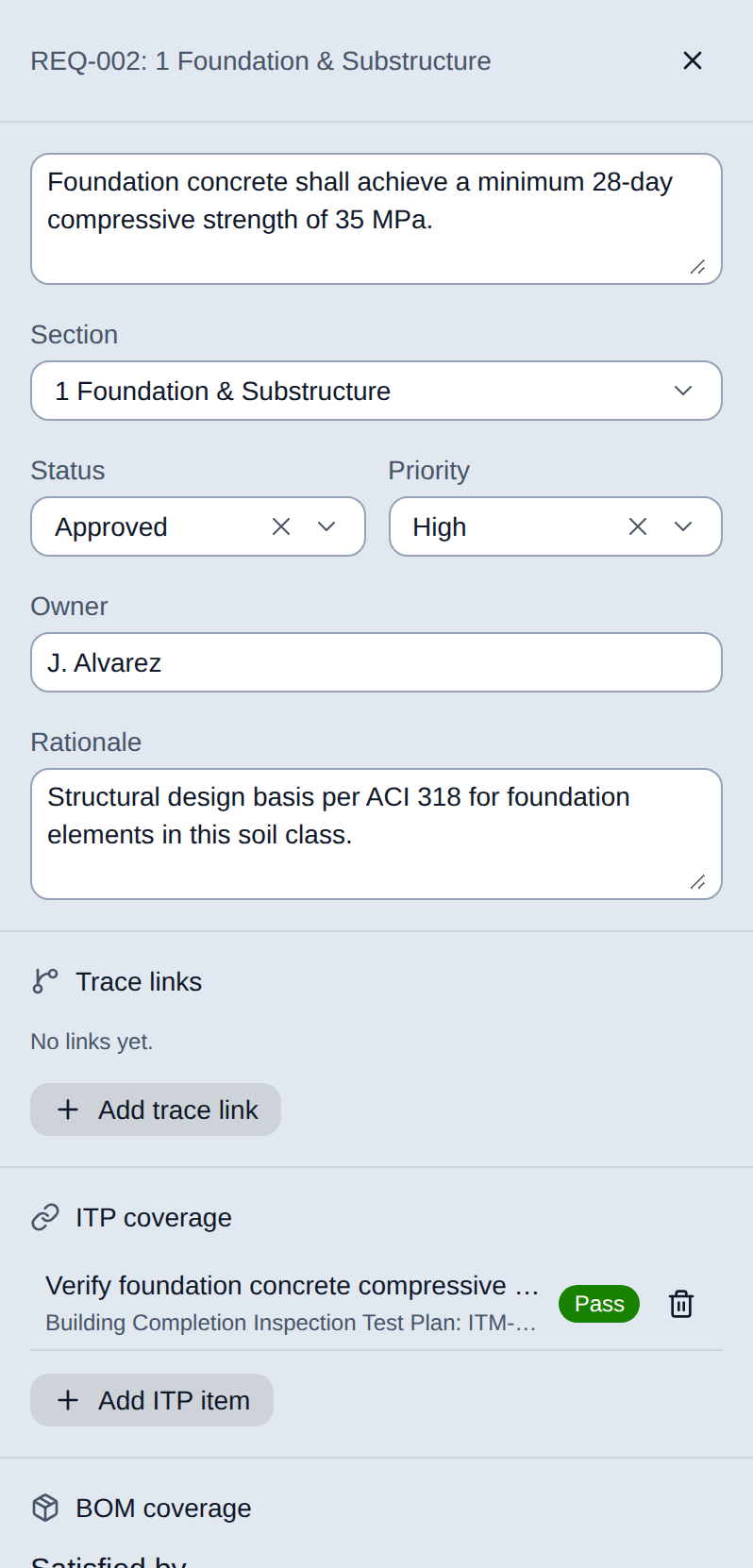
A requirement's detail panel: text, section, status, priority, owner, and rationale, with coverage sections below.
Keep the rationale (the *why* behind a requirement) in the Rationale field rather than folded into the requirement text itself, so the text stays a single testable statement.
Linking to ITP items
Every requirement that needs physical or documented verification should link to the ITP item that will verify it. The link is many-requirements-to-one-ITP-item on purpose: a single inspection step, like a pressure test, often verifies several requirements at once. This is what lets the register roll up "implemented but not yet verified" status automatically.
Trace links between requirements work the same way, from the Trace links section of the detail panel. Pick a link type (satisfies, verifies, derives from, or relates to), then pick the target requirement. The picker is sorted by how related each candidate is to the requirement you're on, so the row you're after is usually near the top.
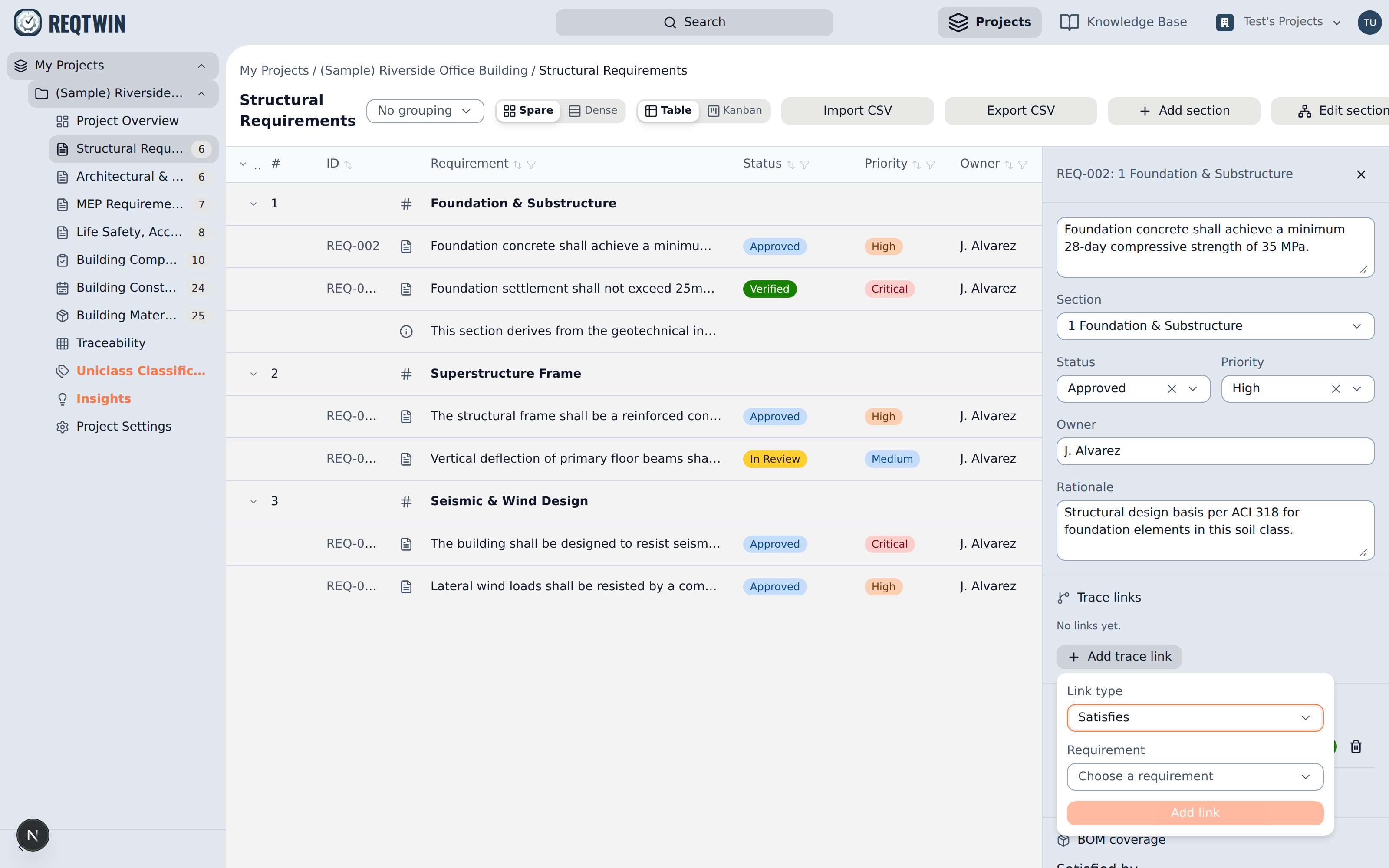
Adding a trace link: choose the link type, then a requirement from the ranked picker.
Finding duplicates and related work
The Similar requirements panel ranks every other requirement in the project by how closely related it is to the one you're viewing, each shown with a match percentage (for example, "82% match"). Even requirements that don't share any of the same wording can surface here if they're about the same thing. The same ranking sorts the Add trace link and Add ITP item pickers, so the most relevant option surfaces first instead of an alphabetical list. Use it to catch near-duplicate requirements before they're saved as two separate rows.
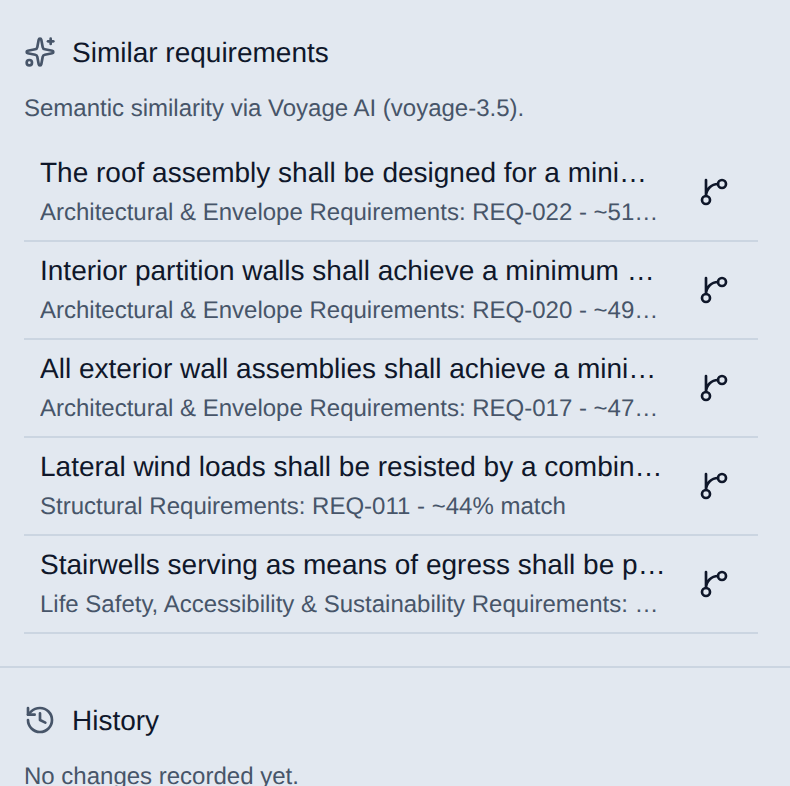
The Similar requirements panel ranks related rows across every document in the project.
History
Field edits are logged automatically (one history entry per field, coalesced so a burst of typing in a text field doesn't create a row per keystroke). The History panel on a requirement's detail view shows who changed what and when.
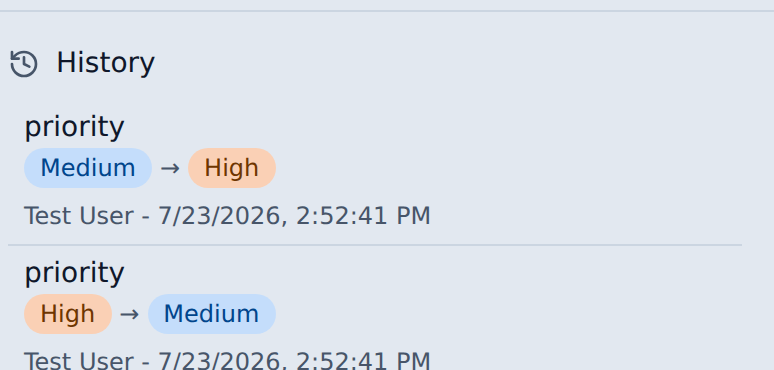
Each tracked field change is logged with the old value, new value, editor, and timestamp.
Checking coverage across the project
The Traceability page (in the sidebar, under the project's documents) rolls the whole project up into one matrix: every requirement down the side, with a dot per link category (BOM, ITP, activity, and related requirements). See "Reading the Traceability Matrix" for how to read it.